Thank you! We'll get back to you within two business days.
Something went wrong. Please try again or email us at hello@bluedynamic.cz.
Business Consultants
Adriana Pricop & Štěpán Kněžek
We'll get back to you within two business days.
/
article
/
Microsoft Teams walkthrough for working from home
Published:
20.5.2020
Nowadays, the work of our teams is moving to the online environment. A big help is Microsoft Teams. These offer many functions that we can use in the home office of our employees. Let's take a look at the Microsoft Teams walkthrough and see how it works.
With Microsoft Teams we can:
● create teams of collaborators, ● use channels that are dedicated to a specific topic, department or project, ● chat, in groups or individually, ● call, ● schedule meetings, ● conduct conference calls, including video calls, ● Share screens and documents.
We can't meet today, but we can work and talk to each other just like BEFORE!
How does Microsoft Teams work?
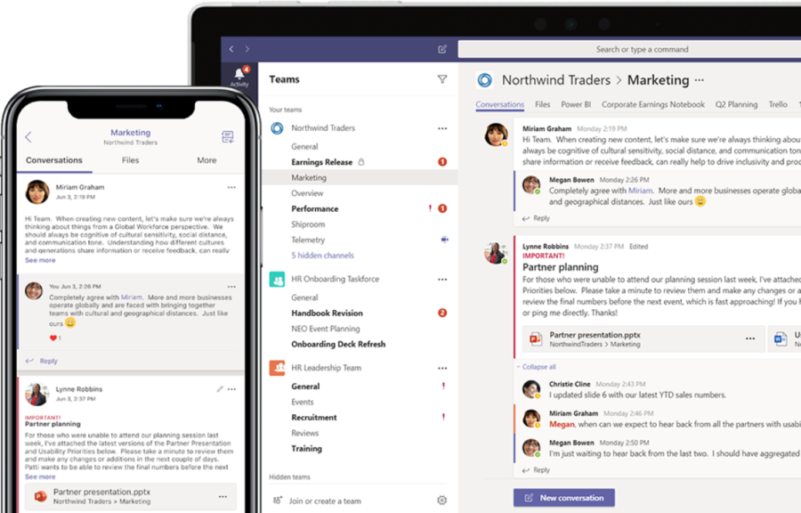
Let's take a look at the Microsoft Teams walkthrough. The administrator can create and manage work teams and communication channels, these can be public or private.
Create a team with Microsoft Teams tutorial
On the left side of the Microsoft Teams screen, click Teams and select from the menu Create a new team. You've created a new work team and can already add individuals and entire groups to your team. Do not forget to name the team correctly, let it be clear what is involved. For example, create a Finance team, a Marketing team, and more.
Start a channel
Channels are conversations of team members who are dedicated to a specific topic, department, or project. It will make it easier for you to navigate the topic or project. Team members should maintain continuity and address the issues that are intended for the channel in the channel.
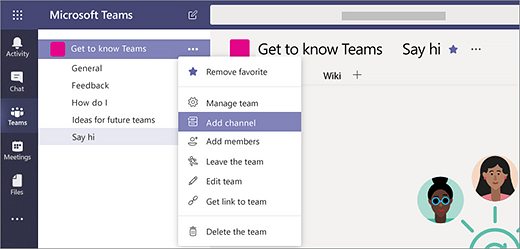
To create a channel in the team, click Other options and you choose an item Add channel. Another option is to click Team Management and add a channel from the channels tab Channels.
Proper naming of the channel will make it easier for workers to navigate, they will know what is being dealt with in which channel. If you want to discuss sensitive information that is not intended for all team members, such as budget, wages, and so on, create a private channel. Then only employees selected by you can access the private channel.
Chatting in Teams
You can use individual or group chats in teams, as well as chats in channels. You click on an item New chat and you begin to communicate. If you only want to communicate with one person, write in the box To whom its name, in case of group chat you add more members to the field. Chat Room It is good to name it again so that you have an overview of what the chat is all about. You can return to the chat at any time by clicking on it in the chat list.
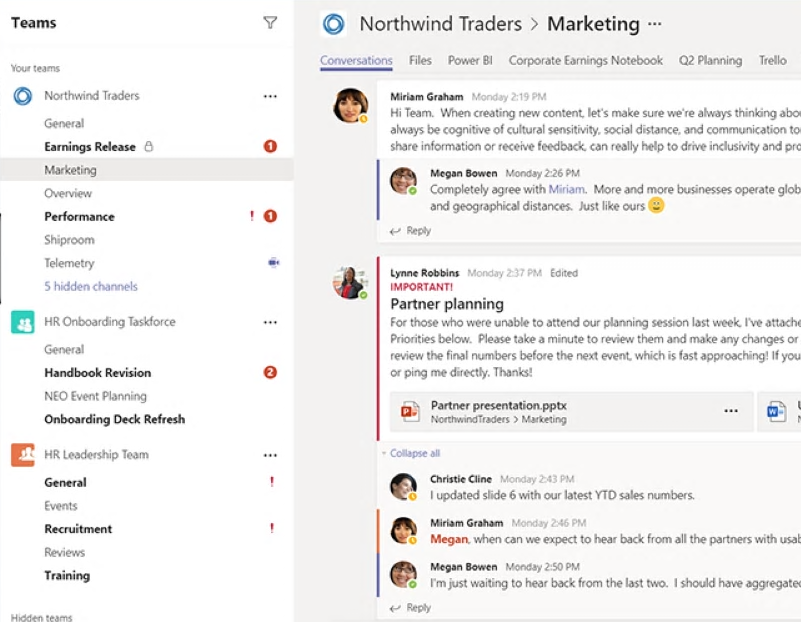
Chats can also be created in channels. In any Teams channel, they are on the first tab Contributions, which is actually a large chat room of the channel in question. Anyone who is connected to the channel sees all posts and has access to them. Responses to messages in the channel are always attached to the original message, making reading the entire thread of the conversation clear.
In the chat you can send text messages, links, files and emojis, gifts or stickers to express emotions.
Call in Teams
You can even make calls in the Teams app, it's as simple as calling from your mobile. In the tab Calls click on the item Dial number and enter the given phone number and confirm by clicking on Make a call.
If you have saved numbers, you can find them in the tab Contacts or you can find the number in History Call, if necessary, in your Voicemail. Always click on the contact and confirm Make a call.
Conference calls or remote meetings
Conference calls will replace meetings and briefings that are impossible to hold nowadays. Meetings in Teams include video, audio, and screen sharing. Thanks to this, you can meet your team face to face, even if at a distance. You can conduct regular meetings, team meetings over a project, but also, for example, job interviews or meetings with contractors. Those who are not members of your organization can also participate in the conference call.
Each scheduled meeting in Teams acts like an online meeting, allowing attendees to join.
You can schedule your online meeting from the chat room for all participants in the chat, or from the calendar for the invitees.
How to do that?
select an option Schedule an Appointment in the chat under the field where you write messages
on the left side of the application go to Calendars and in it in the upper right corner select the option New Appointment.
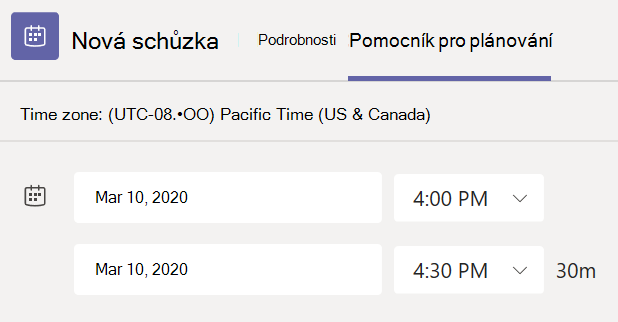
In the calendar, specify the time range of the meeting, name the meeting, write down the details of the meeting, and invite participants. If you use shared calendars, via Planning Assistant you can choose a time that suits everyone.
To join the meeting from your Calendar, click the Join icon. If someone initiates the meeting you will receive a notification and you can also join.
You must have your camera and microphone turned on during conference calls. In a meeting, you can share documents and present an entire desktop, a specific window, a powerpoint file, or a whiteboard.
Be aware that conference calls have a slightly different vibe than face-to-face meetings or briefings. Whether it is a video or audio conference, more than ever take care that the meeting must be properly conducted by someone.
Do not jump into speech, describe to others what you are doing and what you want them to do, pass on the word, share the screen and documents.
You can also use conference calls for social contacts with colleagues you can't see right now. Arrange a video call instead of regular coffee in the kitchen to discuss work and other things. Teams features connect you even remotely.
In the current critical situation, we offer you the necessary licenses for free and our services with a 50% discount.
Within two days we will get everything up and running and provide remote IT support. Do not wait, the end of quarantine is far away, contact our specialist.